
Securing a workstation comes down to five controls, applied in order: enforce multi-factor authentication and strip local admin rights, turn on full-disk encryption with a pre-boot PIN, deploy endpoint detection and response (EDR) with centralized logging, and run patches and backups on a documented schedule. Everything else in a workstation security program builds on those five items.
That order matters because attackers exploit the same weak points repeatedly: exposed credentials, standing admin rights, unpatched software, and unencrypted drives on lost or stolen hardware. Workstations remain the most common entry point for cyberattacks, which is also why cyber insurance underwriters now inspect these exact controls before they'll write a policy.
Here's the priority sequence for a security push, ranked by impact versus effort:
- Enforce MFA everywhere it touches sensitive systems: email, VPN, RDP, and privileged accounts. Quick win, days not weeks.
- Remove local admin rights from standard users and route elevation requests through a managed workflow. Quick to medium effort.
- Turn on full-disk encryption with TPM+PIN, not TPM alone, and confirm recovery keys are escrowed centrally. Quick win on modern hardware.
- Deploy EDR and route logs to a central system. Medium effort, high payoff for detection speed.
- Set patch SLAs by severity and automate enforcement through your MDM. Ongoing, but the policy itself takes a day to define.
- Roll out application allowlisting (WDAC, AppLocker, or similar). This is the long project: budget weeks for audit mode before you flip to enforcement.
The first three items on that list can often be completed in a single sprint. Allowlisting and full asset lifecycle management take longer and deserve a phased rollout, which we cover later in this guide.
Key Takeaways
Workstation security works when authentication, encryption, endpoint detection, and patching operate as one enforced system rather than four separate projects.
| Point | Details |
|---|---|
| Do today | Enforce MFA on privileged accounts and confirm full-disk encryption is active fleet-wide. |
| Do this week | Remove local admin rights for standard users and verify EDR is deployed on every managed device. |
| Do this quarter | Roll out application allowlisting in audit mode and complete a full backup restore test. |
| Assign ownership | Map each control to a named owner using a roles matrix, not a department name alone. |
| Bring in expert support | CisoSafe's vCISO services help teams sequence these controls and document evidence for audits and cyber insurance. |
Table of Contents
- What Workstation Security Covers and Who Owns Each Control
- How Do You Secure Access and Authentication on Workstations?
- Disk and Data Encryption: Getting Key Management Right
- Why Modern Malware Protection Means EDR, Not Just Antivirus
- What Patch Cadence Keeps Workstations Protected?
- Network Controls and Host Firewall Configuration
- Software Rules: Approved Apps and Unused Services
- Inventory and Lifecycle Management for Hardware and Software
- Backup Strategy and Tested Recovery for Workstation Data
- Physical Safeguards and Removable Media Controls
- Centralized Logging and Telemetry: What to Collect and Why
- Workstation Security Policy: Required Sections and Enforcement
- Actionable Hardening and Deployment Checklist
- Why Centralized Logging and Zero-Trust Endpoints Matter Most
- What to Do in the First 24 to 72 Hours After a Workstation Is Compromised
- How to Choose Endpoint Security, MDM, and Backup Vendors
- How CisoSafe Advises Clients on Workstation Security
- Get Hands-On Help Implementing Workstation Security Controls
- Frequently Asked Questions
- Sources
What Workstation Security Covers and Who Owns Each Control
Workstation security spans every endpoint a person logs into to do work: desktops, laptops, shared kiosks, point-of-sale terminals, and remote machines connecting over VPN or a cloud desktop. It is not just an IT function. Encryption and patching sit with endpoint engineering, but acceptable-use policy sits with HR, and incident escalation touches legal and sometimes a cyber-insurance broker.
Most breaches involving workstations trace back to a gap in ownership, not a missing tool. A patch gets deployed but nobody verifies it installed. A departing employee's laptop gets collected but nobody confirms the drive was wiped. Assigning a named owner to each control closes that gap before it becomes an incident.
- Desktops and laptops: standard corporate hardware, typically MDM-enrolled.
- Shared terminals and kiosks: point-of-sale systems, lab machines, reception desks, often multi-user.
- Remote and BYOD workstations: home offices, contractor laptops, personal devices with conditional access.
| Control | Owning Team | Escalation Contact |
|---|---|---|
| Disk encryption & key escrow | Endpoint engineering | IT security lead |
| Patch management & baselines | IT operations | Endpoint engineering manager |
| EDR & centralized logging | Security operations | vCISO or security manager |
| Physical locks & clean-desk enforcement | Facilities | HR/office management |
| USB & removable media policy | IT security | Security manager |
| Backup & restore testing | IT operations | Infrastructure lead |
These controls intersect with identity and access management (IAM), broader endpoint management platforms, network segmentation, and whatever compliance framework the organization is pursuing, whether that's SOC 2, HIPAA, or CMMC. A security frameworks guide is a useful reference when mapping these controls to specific audit requirements.
How Do You Secure Access and Authentication on Workstations?
Credential theft is still the fastest path into a corporate network, and workstation authentication is where you close that door. Multi-factor authentication should be mandatory for every privileged account and every remote-entry point, including email, VPN, and RDP. Hardware-backed authenticators or passkeys beat SMS-based codes, which remain vulnerable to SIM-swapping and phishing.
Removing local admin rights from everyday users is the single highest-leverage move most organizations skip. Zero-trust endpoint approaches that eliminate standing admin rights cut off an attacker's ability to escalate from a compromised endpoint to a network-wide breach. Instead of blanket admin access, use just-in-time elevation or an endpoint privilege management tool that grants temporary rights for specific tasks and logs every request.
Session management needs its own rules:
- Set idle lock to 5 to 15 minutes depending on the sensitivity of the role.
- Disable automatic login on every managed device without exception.
- For shared terminals, use badge tap or fast single sign-on with a secure reauthentication step rather than shared passwords.
Pro Tip: Shift workers in hospitals, warehouses, and call centers hate slow logins, and slow logins push people toward workarounds like sticky-note passwords. Imprivata's recommendation of tap-in/tap-out badge authentication solves both problems at once: it's faster than typing a password and still gives each session a unique identity for audit purposes.
Disk and Data Encryption: Getting Key Management Right
Full-disk encryption protects data the moment a device is lost or stolen, but only if it's configured correctly. On Windows, that means BitLocker with a TPM+PIN protector, not TPM alone. TPM-only encryption unlocks automatically at boot, which leaves it exposed to cold-boot attacks and certain physical tampering techniques. Requiring a pre-boot PIN alongside the TPM closes that gap and is standard guidance in high-security environments.

On macOS, FileVault handles full-disk encryption natively, and institutional workstation security standards treat encryption as a baseline requirement, often tied to legal safe-harbor provisions in the event of a lost device.
Key management determines whether encryption actually protects you or just locks you out of your own hardware during a support ticket:
- Escrow recovery keys centrally, in Active Directory, Entra ID, or your MDM platform, never on a sticky note or in a spreadsheet.
- Rotate recovery keys after any suspected compromise or after IT support accesses a device for troubleshooting.
- Layer file-level or containerized encryption on top of full-disk encryption for specific folders holding regulated data, such as PHI or PCI-scoped files.
Pro Tip: A practical Windows 11 and macOS baseline treats disk encryption as non-negotiable, alongside current updates and a standard (non-admin) user account. Start there if you're building a baseline from scratch instead of debating every edge case first.
Why Modern Malware Protection Means EDR, Not Just Antivirus
Signature-based antivirus catches known threats. It does not catch novel malware, fileless attacks, or an attacker living off the land with legitimate system tools, which describes a growing share of real-world intrusions. EDR platforms add behavioral detection, automated containment, and detailed telemetry that antivirus alone was never designed to provide.
Application control is the next layer up. Tools like Windows Defender Application Control (WDAC) or AppLocker let you define exactly which executables are allowed to run, blocking everything else by default. The safest rollout model follows three phases:
- Audit mode first. Run the policy in logging-only mode for at least a few weeks to see what would have been blocked.
- Pilot on a small group. Enforce on IT and security team machines before expanding further.
- Enforce organization-wide, with a documented exception process for legitimate edge cases.
Whatever EDR platform you choose, confirm it includes tamper protection so malware or an attacker with local access can't simply disable it, remote rollback for infected endpoints, centralized management across the fleet, and a continuous update cadence for detection signatures and behavioral models.
Pro Tip: Rushing straight to enforcement mode on application control is the fastest way to flood your help desk with tickets and erode trust in the security team. Give the audit window enough time to catch quarterly-run software and legacy tools before you flip the switch.
What Patch Cadence Keeps Workstations Protected?
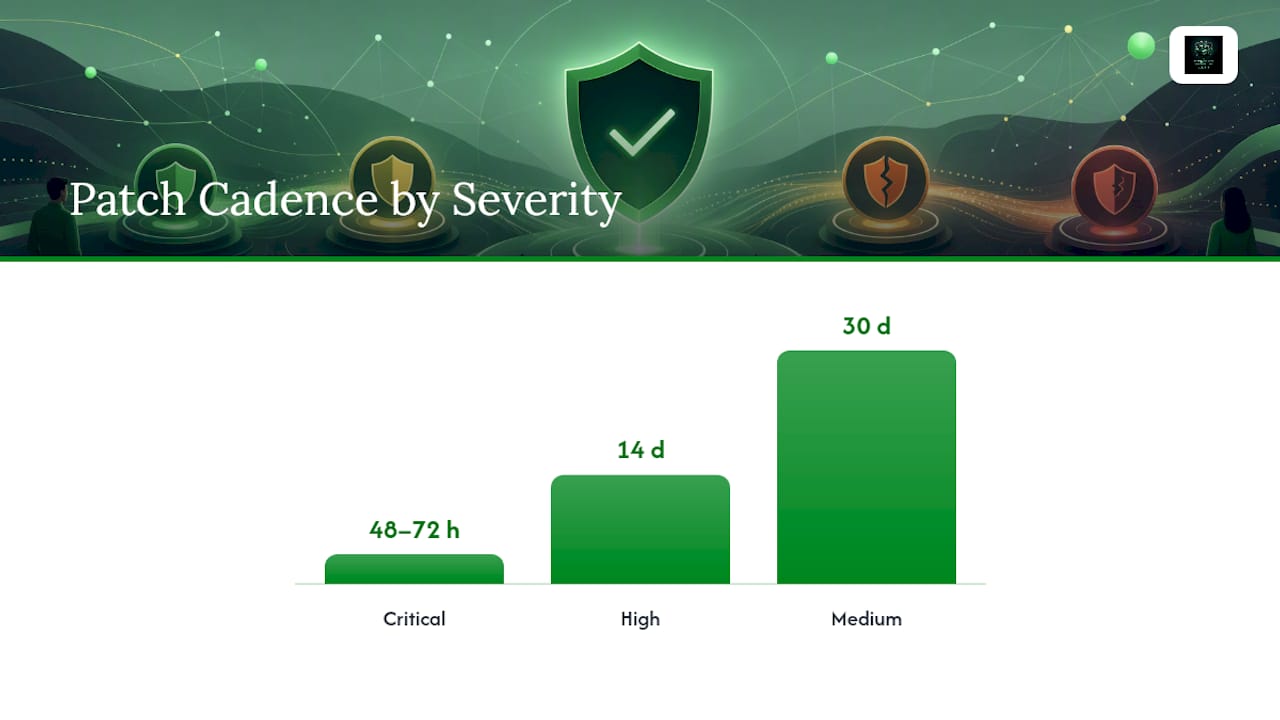
Unpatched software is one of the most persistently exploited gaps in enterprise environments, and the fix is procedural, not technical. Set service-level agreements by severity: critical vulnerabilities patched within 48 to 72 hours, high-severity within 14 days, and medium-severity within 30 days. Enforce those windows through your MDM or patch automation platform rather than relying on manual pushes.
Baseline maintenance matters just as much as patch speed. Keep workstations on vendor-supported OS versions, apply hardening baselines consistently, and revalidate those baselines on a recurring schedule rather than treating initial hardening as a one-time project.
- Establish patch SLAs by severity and document them in policy.
- Automate patch deployment through MDM with staged rollout groups.
- Test patches on a pilot group before full deployment to catch compatibility breaks.
- Maintain a rollback plan for patches that cause operational issues.
- Report patch compliance rates monthly for audit and insurance evidence.
| Patch Severity | Target Deployment Window | Verification Method |
|---|---|---|
| Critical | 48–72 hours | Automated MDM compliance report |
| High | 14 days | Scheduled compliance scan |
| Medium | 30 days | Monthly compliance report |
Configuration checklist for baseline verification: confirm OS build number against the supported list, verify third-party software (browsers, PDF readers, Java runtimes) is current, and cross-check patch compliance dashboards against your MDM's device inventory count. If those two numbers don't match, you have unmanaged or shadow devices somewhere on the network.
Network Controls and Host Firewall Configuration
Every managed workstation should run its host firewall enabled on all network profiles, with a default posture of blocking inbound connections and allowing established outbound traffic. This is a baseline setting, not an advanced configuration, yet it's routinely disabled by users troubleshooting a printer or a file share.
Remote management protocols deserve tighter restrictions than most default configurations allow. RDP exposed directly to the internet without a VPN in front of it remains one of the most exploited ransomware vectors in enterprise environments, and it shows up repeatedly in breach post-mortems.
- Restrict RDP access to VPN-only connections layered with MFA, or route it through a private management network entirely.
- Block any direct internet exposure of RDP at the network perimeter, not just on the endpoint.
- Segment the network so a compromised workstation can't reach critical systems, financial applications, or domain controllers without crossing a monitored boundary.
- Ship firewall drop logs to your SIEM. A spike in blocked outbound connections from one machine is often the first visible sign of malware trying to phone home.
Software Rules: Approved Apps and Unused Services
Application hygiene starts with an inventory of what's actually installed across the fleet, followed by a defined audit period before you enforce restrictions. Most organizations discover, once they run this audit, that a meaningful share of installed software has no clear business justification and hasn't been used in months.
Certain services and protocols should be disabled by default on any modern workstation, regardless of role: FTP, Telnet, SMBv1, and legacy remote-support tools that predate your current EDR and MDM stack. These aren't edge-case hardening steps. They're default-off settings in most current hardening baselines because they carry known, well-documented vulnerabilities with no modern replacement justification.
- Build an approved-software inventory and run a 30 to 60 day audit before moving to enforcement.
- Disable legacy protocols and unused remote-access tools fleet-wide unless a documented business case exists.
- Handle exceptions through short-lived, logged approvals rather than permanent carve-outs.
- Review exceptions quarterly, since "temporary" access has a way of becoming permanent without a forced review.
Vulnerability scanners play a supporting role here, flagging outdated software versions and unauthorized installs so your approved list doesn't drift out of sync with reality. A vulnerability scanning guide walks through how to fold scan results into ongoing patch and application management workflows.
Inventory and Lifecycle Management for Hardware and Software
You cannot secure what you don't know exists. Automated discovery, reconciling MDM records against network scans and a configuration management database (CMDB), catches the shadow devices and forgotten installs that manual spreadsheets always miss eventually.
Lifecycle management follows a workstation from procurement through decommissioning:
- Procurement baseline: new hardware ships with an approved image, not a default vendor configuration.
- Onboarding hardening: apply encryption, EDR enrollment, and baseline settings before the device reaches an end user.
- Supported maintenance window: track OS and hardware end-of-life dates and flag devices approaching that deadline.
- Decommissioning: securely wipe drives using a verified method and remove the device from every inventory system, not just the obvious one.
License tracking and end-of-life monitoring belong in the same process. An unsupported OS version is a patch gap that no SLA can fix, because the vendor has stopped issuing patches entirely.
Backup Strategy and Tested Recovery for Workstation Data
Backups only count as a control if you've actually tested restoring from them. A backup that has never been restored is a hope, not a plan, and ransomware incidents are exactly when that distinction gets exposed the hard way.
Recommended backup topology includes centralized backup with versioning and at least one immutable or air-gapped copy that ransomware encrypting live shares can't touch. Define your recovery point objective (how much data loss is acceptable) and recovery time objective (how fast you need to be back online), then test against those targets on a fixed schedule rather than an ad hoc one.
- Identify what needs backup: local user profiles, roaming profile data, and any VDI-specific storage that lives separately from the base image.
- Configure centralized backup with versioning and at least one immutable copy.
- Encrypt backup data and restrict access to backup encryption keys to a small, defined group.
- Run a restore test quarterly at minimum, restoring a sample workstation profile to confirm the process actually works end to end.
- Document restore test results as evidence for audits and insurance renewals.
- Keep local profile backups separate from server-side or VDI backup processes, since they often use different tools and different schedules.
- Treat backup encryption keys with the same access controls you apply to production credentials.
Physical Safeguards and Removable Media Controls
Physical security is the control most often overlooked because it feels low-tech next to EDR and encryption, yet a stolen unencrypted laptop is still one of the most common causes of a reportable data breach. Cable locks, secure docking stations, and privacy filters for screens in open offices or client-facing settings cost little and close a real gap.
Clean-desk policies and locked storage for sensitive printouts matter more in regulated industries than most teams assume, particularly in legal and healthcare settings where physical documents can carry the same regulatory weight as digital records.
- Deploy cable locks and secure docking for laptops in open or shared spaces.
- Enforce clean-desk policies and locked storage for printed sensitive material.
- Disable USB mass storage by default through MDM policy, whitelisting specific devices only where there's a documented business need.
- Monitor for unauthorized USB device attachments and alert on anomalies, particularly on machines with access to sensitive data.
Pro Tip: In shared-workstation environments, badge readers combined with kiosk mode and fast session suspension solve the credential-sharing problem that plagues shift-based operations. A fast, secure authentication pattern prevents the all-too-common practice of one login staying active across an entire shift, which erases any meaningful audit trail of who did what.
Centralized Logging and Telemetry: What to Collect and Why
Endpoint telemetry is what turns an incident from a mystery into a timeline. Without it, security teams are reconstructing what happened from fragments, or worse, guessing. Robust centralized logging is what makes detecting lateral movement and credential abuse possible in the first place, rather than something you discover weeks later during a forensic review.
Key events worth collecting from every managed workstation include process creation logs, authentication events, LAPS (Local Administrator Password Solution) reads, BitLocker suspension events, USB attach and detach events, suspicious child process chains, and every alert your EDR platform generates.
By the numbers: Security leaders across the industry consistently point to the same conclusion, that without endpoint telemetry, investigation and detection of lateral movement are severely limited. An organization with EDR deployed but no centralized log aggregation is flying with instruments that only work one at a time.
- Retain workstation logs for a minimum period that matches your compliance framework's requirements, often 90 days to a year depending on the standard.
- Set alerting thresholds for high-risk events like repeated failed authentication or unexpected BitLocker suspension.
- Confirm log sources stay available during an active incident. Attackers routinely try to disable logging as one of their first moves, and if that happens silently, your investigation loses its foundation.
Workstation Security Policy: Required Sections and Enforcement
A policy document that nobody enforces is worse than no policy at all. It creates a paper trail showing you knew the standard and didn't meet it, which auditors and insurance carriers both notice. A workable workstation security policy needs these sections at minimum:
- Scope: which devices the policy covers, including BYOD and contractor equipment.
- Roles and responsibilities: named owners for each control, not just a department name.
- Baseline configurations: the specific settings every workstation must meet before it's considered compliant.
- Acceptable use: what employees can and can't do on company hardware.
- Remote and BYOD rules: conditions under which personal or off-network devices can access company data.
- Removable media rules: USB restrictions and exception handling.
- Incident reporting: who to contact and how fast, when something looks wrong.
- Audit and compliance evidence: what documentation proves the policy is actually being followed.
Pro Tip: Draft your policy sections around what an auditor or insurance underwriter would ask to see as evidence, not around what sounds thorough on paper. A policy that can't produce a compliance report is a liability during a review, not an asset.
Enforcement relies on configuration drift detection (catching devices that fall out of compliance after initial setup), automated compliance reporting, and a clear path to HR involvement when violations are willful rather than accidental.
| Insurer/Auditor Requirement | Why It's Requested | Typical Evidence |
|---|---|---|
| MFA on privileged accounts | Reduces credential-theft impact | Identity provider configuration export |
| EDR deployed fleet-wide | Confirms detection and response capability | EDR console coverage report |
| Full-disk encryption | Limits exposure from lost/stolen devices | MDM encryption status report |
| Documented patch SLAs | Shows exposure windows are managed | Monthly patch compliance report |
| Tested backups | Confirms ransomware recovery capability | Restore test log |
Cyber insurance carriers routinely request evidence of exactly these controls during underwriting, and a policy template resource can save significant drafting time if you're building this documentation from scratch.
Actionable Hardening and Deployment Checklist
A hardened baseline gets deployed in phases, not all at once. Pushing every control simultaneously across an entire fleet is how help desks get overwhelmed and rollbacks happen under pressure.
- Pilot phase (weeks 1 to 3): Enroll a small group in MDM, enable MFA, enforce full-disk encryption, and deploy EDR. Sign-off: IT operations lead.
- Phased deployment (weeks 4 to 8): Expand to 25%, then 50%, then 100% of the fleet. Begin WDAC/allowlisting audit mode in parallel. Sign-off: security manager.
- Enforcement phase (weeks 9 to 12): Flip application control to enforcement, finalize patch SLAs, and confirm centralized logging covers 100% of devices. Sign-off: vCISO or security director.
- Validation phase (ongoing): Run monthly compliance reports and quarterly restore tests. Sign-off: IT operations and security manager jointly.
| Control | Verification Check | Target Timeline |
|---|---|---|
| Full-disk encryption | Confirm BitLocker/FileVault status in MDM console shows "on" for all devices | Weeks 1–3 |
| EDR deployment | Confirm heartbeat/check-in status within the last 24 hours for all endpoints | Weeks 1–3 |
| MFA enforcement | Confirm identity provider reports 100% coverage on privileged accounts | Weeks 1–3 |
| Patch compliance | Confirm MDM patch dashboard shows compliance rate against SLA windows | Weeks 4–8 |
| Application allowlisting | Confirm audit logs show expected block/allow behavior before enforcement | Weeks 4–12 |
- Assign one accountable owner per control row, not a shared department name.
- Re-run verification checks after any major OS upgrade, since baseline settings sometimes reset.
Why Centralized Logging and Zero-Trust Endpoints Matter Most
If you can only fully mature two areas of a workstation security program in year one, make them centralized logging and zero-trust endpoint controls. Everything else on this list either supports those two pillars or depends on them for effectiveness.
Zero-trust endpoints, meaning least privilege enforcement, application ringfencing, and credential protection, stop the most common lateral-movement pattern cold: an attacker compromises one user's credentials, then tries to use that access to reach other systems. Removing standing admin rights is what breaks that chain, because a standard user account simply can't install the tools an attacker needs to move laterally.
By the numbers: Practitioners consistently describe centralized logging as the difference between a fast, evidence-based investigation and a blind guess. Incident response without endpoint telemetry means reconstructing a timeline from memory and partial artifacts, which extends investigation time and often means the full scope of a breach never gets identified.
Pro Tip: Don't try to collect every possible event type on day one. For a first 30-day telemetry deployment, start with authentication events, process creation logs, and EDR alerts only. That minimal set catches the majority of early-stage attack patterns while your team builds the analysis workflow, and you can expand collection scope once the pipeline is stable.
- Administrative rights removal blocks the most common escalation path from a single compromised endpoint.
- Centralized logging turns weeks-long forensic reconstructions into hours-long ones.
- Both controls compound: zero-trust limits what an attacker can do, and logging shows you the moment they try.
What to Do in the First 24 to 72 Hours After a Workstation Is Compromised
Speed and order both matter here. The wrong sequence, like rebooting a compromised machine before capturing volatile data, can destroy the evidence you need to understand what happened.
- Isolate the device from the network immediately, without powering it down, to preserve memory-resident evidence.
- Capture volatile data: running processes, network connections, and memory state before anything else changes.
- Preserve EDR artifacts and logs tied to that endpoint before any remediation begins.
- Image the drive for forensic review if the incident's scope or sensitivity warrants it.
- Reimage or rebuild the workstation from a known-clean baseline rather than attempting to clean an infected system in place.
- Force credential resets for every account that logged into or was accessible from that workstation.
- Review lateral access logs to confirm whether the compromise spread beyond the original device.
Pro Tip: Loop in legal, HR, and your cyber-insurance broker earlier than feels necessary. Many cyber insurance policies require notification within a specific window to preserve coverage, and waiting until you have "the full picture" can mean missing that deadline entirely. If the incident touches regulated data or looks like it could escalate, that's the moment to activate an incident response retainer or bring in a vCISO rather than handling it solely in-house.
- Document every action taken during containment, with timestamps, for both legal and insurance purposes.
- Don't skip the credential reset step even if you're confident the compromise was contained quickly.
How to Choose Endpoint Security, MDM, and Backup Vendors
Vendor selection determines whether your workstation security program is sustainable or a constant maintenance headache. A few non-negotiable capabilities separate enterprise-ready platforms from consumer-grade tools wearing an enterprise price tag.
Require these core capabilities from any endpoint security or MDM vendor: EDR with automated containment (not just alerting), centralized logging export to your SIEM of choice, tamper protection that survives an attacker with local access, managed update deployment, application allowlisting support, and verifiable encryption key handling with escrow options.
- Ask how telemetry export works: does it integrate with your existing SIEM, or does it lock you into a proprietary dashboard?
- Ask about offline and air-gapped recovery: can the platform restore a device with no network connection?
- Ask about support SLAs: what's the guaranteed response time for a critical containment request?
- Ask about scalability: does licensing and performance hold up at 10x your current device count?
- Ask about IAM and SIEM integration: does the platform work with your existing identity provider and logging stack, or does it require a rebuild?
- Red flag: no tamper protection, meaning malware or a local attacker can disable the agent without detection.
- Red flag: opaque telemetry retention policies that don't state clearly how long data is kept or how to export it.
- Red flag: no forensic export capability, which leaves you unable to investigate an incident properly.
- Red flag: the vendor can't demonstrate enterprise-managed mode at scale, only a consumer or small-business tier.
How CisoSafe Advises Clients on Workstation Security
Most organizations we work with don't lack knowledge of what good workstation security looks like. They lack the bandwidth to sequence it correctly while running daily operations, which is where a rapid risk assessment earns its keep, identifying the highest-risk gaps before committing resources to a full remediation plan.
The pattern that works best across regulated industries, from law firms to energy operators, follows a predictable rhythm: a 30-day assessment and quick-win phase covering MFA, admin rights, and encryption, a 90-day phase for EDR deployment, centralized logging, and policy documentation, and a 180-day phase for application allowlisting, full audit evidence collection, and insurance-readiness review. Clients in energy and industrial settings tend to need extra time in that middle phase, since shared and operational workstations carry different constraints than standard office equipment.
The common outcome across these engagements isn't a perfect security posture on day one. It's a documented, defensible one that holds up under an audit or an insurance renewal, because the gap between "we think we're secure" and "we can prove it" is exactly what carriers and regulators are checking for now. Understanding why cyber threats keep evolving also shapes how we prioritize which controls get attention first, since the threat landscape shifts faster than most internal security roadmaps do on their own.
Get Hands-On Help Implementing Workstation Security Controls
Reading a prioritized checklist is one thing. Executing it across dozens or hundreds of endpoints while still running daily operations is another, and that gap is exactly where most workstation security programs stall out.
CisoSafe pairs vCISO advisory services with an AI-powered compliance platform built for regulated, high-stakes organizations, law firms, energy operators, and mid-market companies that need enterprise-grade security expertise without the cost of a full-time CISO. The engagement model covers a rapid risk assessment, a prioritized remediation roadmap, policy templates mapped to frameworks like SOC 2, HIPAA, PCI DSS, and CMMC, and hands-on support implementing the controls covered in this guide. The platform layer adds automated penetration testing and compliance reporting, so the evidence auditors and insurance underwriters ask for gets generated as part of normal operations instead of scrambled together during renewal season. That translates to faster remediation timelines and documentation that holds up when a carrier or auditor asks for proof. If your team needs a structured path from checklist to verified compliance, CisoSafe's vCISO and compliance services are built for exactly that handoff. Reach out to scope a risk assessment and get a prioritized roadmap for your environment.
Frequently Asked Questions
What is the single most important workstation security control?
Multi-factor authentication combined with removing local admin rights delivers the fastest reduction in risk for the least implementation effort. Both can typically be deployed within days using existing identity and MDM tools.
How often should workstations be patched?
Critical vulnerabilities should be patched within 48 to 72 hours, high-severity within 14 days, and medium-severity within 30 days. These windows should be automated through MDM rather than tracked manually.
Is TPM-only encryption enough for workstation security?
TPM-only BitLocker protectors unlock automatically without user interaction, which leaves devices exposed to cold-boot and physical tampering attacks. A pre-boot PIN combined with TPM closes that gap and is the recommended configuration for regulated environments.
Does workstation security affect cyber insurance eligibility?
Yes. Underwriters routinely request documented evidence of MFA, EDR deployment, full-disk encryption, and patch management before issuing or renewing a policy. Missing controls can affect both eligibility and premium pricing.
What should be logged from a workstation for security monitoring?
At minimum, capture authentication events, process creation logs, USB attach and detach events, BitLocker suspension events, and every EDR alert. These events should route to a centralized log system, not stay local to the device.
Sources
Configuration-level detail benefits from going straight to primary standards rather than secondhand summaries. For technical hardening specifics like registry keys, group policy settings, and audit configurations, the CIS Benchmarks and Microsoft's own security baselines remain the most current reference points.
For policy language and institutional baseline examples, university IT security policies offer practical, field-tested templates. Penn's desktop security guidance and Highline's workstation security standard both show how academic institutions translate abstract security requirements into enforceable, specific rules.
For insurance-facing evidence requirements, the First Underwriters workstation inspection checklist lays out exactly what underwriters look for during a cyber policy review, which is worth reviewing before your next renewal cycle rather than after a claim.
- WORKSTATION SECURITY INSPECTION — First Underwriters Insurance Brokers
- Three best practices for workstation security — Imprivata
- Nine Best Practices for Workstation Protection — Palo Alto Networks
- 1.9 Workstation Security Standard — Highline